

Accessibility Statement
The Official website of the Meghalaya State Higher Education Council Act(MSHEC), Shillong, Meghalaya, has been built with an aim to provide maximum accessibility and usability to its visitors.
This website can be viewed from a variety of devices such as Desktop or Laptop computers, web-enabled mobile devices, WAP phones, PDAs, etc. However, currently Portable Document Format (PDF) files are not fully accessible.
We aim to be standards compliant and follow principles of usability and universal design, which should help all visitors of this website.
This website is designed to meet the Guidelines for Indian Government Websites and adheres to level AA of the Web Content Accessibility Guidelines (WCAG) 2.0 by the World Wide Web Consortium (W3C). Some information may be linked to external sites; these sites are maintained by respective departments and they are responsible for their own accessibility compliance.
If you face any difficulty or have suggestions regarding accessibility, please share the details along with your contact information so we may assist you.
Screen Reader
| Screen Reader | Website | Free or Commercial |
|---|---|---|
| Non Visual Desktop Access (N.V.D.A.) | https://www.nvaccess.org | Free |
| System Access To Go | https://www.satogo.com/ | Free |
| J.A.W.S. | https://support.freedomscientific.com/Downloads/JAWS | Commercial |
| Supernova | https://yourdolphin.com | Commercial |
Accessibility Options in browser
Microsoft Internet Explorer for Windows
Open your Internet Explorer Web Browser.
Select Tools from the top menu.
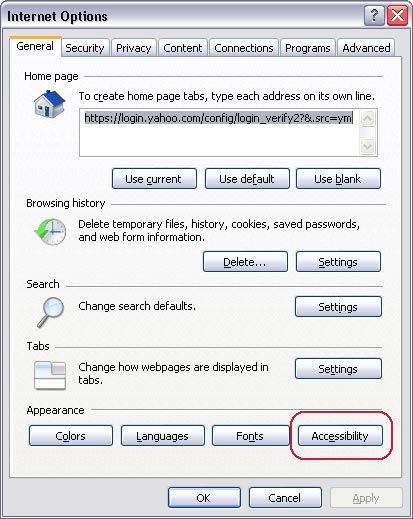
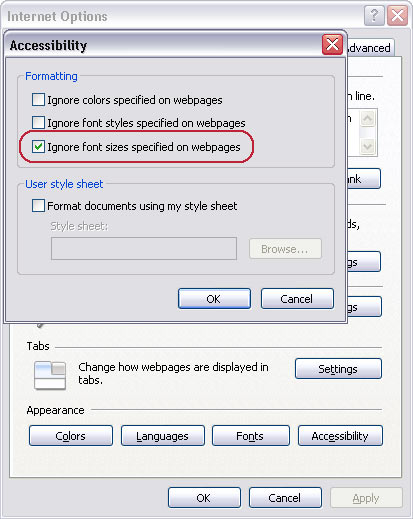
Select Internet options…
Go to the General tab.
Click Accessibility.
To adjust font size, check Ignore font sizes specified on web pages.
To remove colours, check Ignore colours specified on web pages.
Select View → Text Size and choose a size.
Making Text Larger in Mozilla Firefox
Open the View menu or press Alt + V.
Select Text Size.
Use Ctrl + + to increase, Ctrl + - to decrease, Ctrl + 0 to reset.
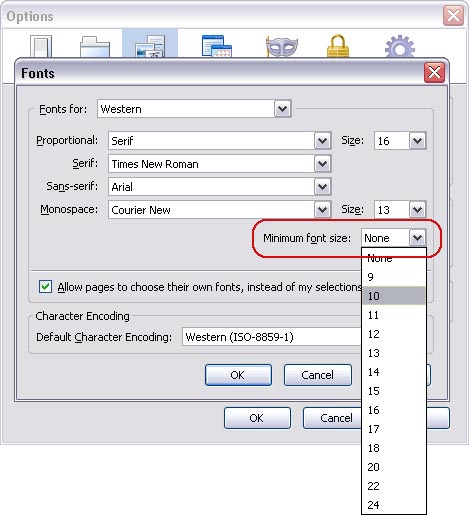
To set a minimum font size:
Open Tools → Options.
Select Content.
Click Advanced.
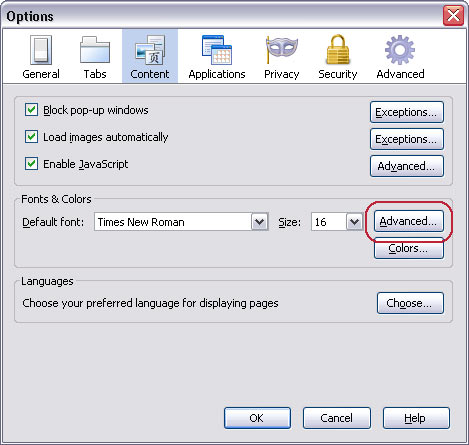
Adjust the Minimum font size as needed.
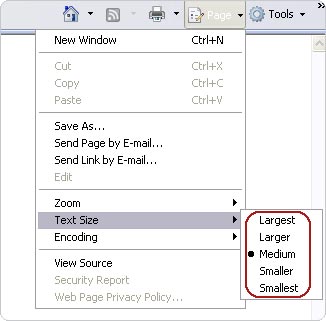
Making Text Larger in Internet Explorer 7
Use Ctrl + + or Ctrl + - to zoom the entire page.
Alternatively use Page → Text Size.
If text remains unchanged due to fixed sizes:
Go to Tools → Internet Options → Accessibility.
Accessibility Features in Google Chrome
Magnifying your screen
Hold Ctrl and press:
- + to zoom in
- - to zoom out
- 0 to reset zoom